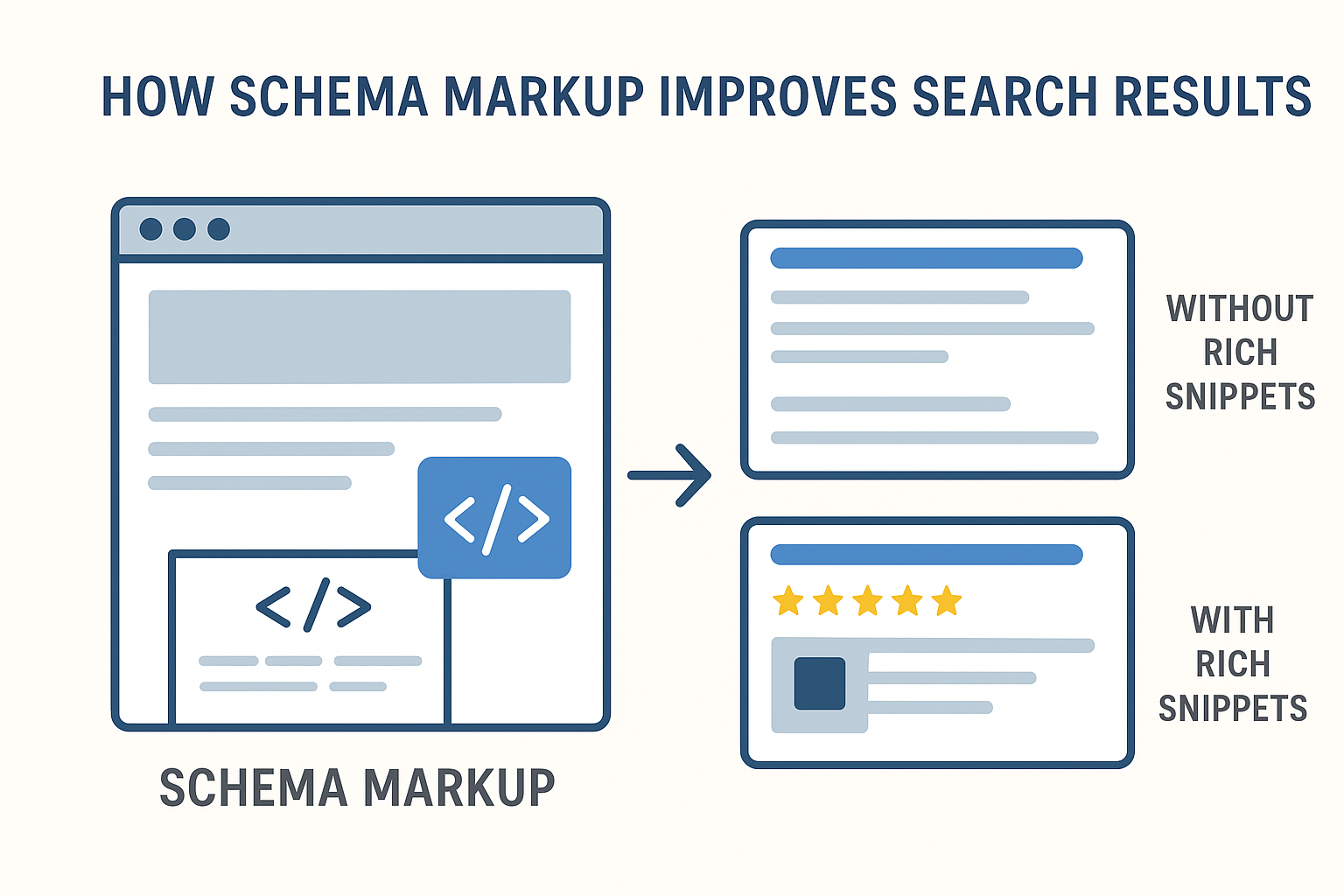
The digital storefront of today demands more than just appealing products and a user-friendly interface; it requires a robust strategy to stand out in the crowded search engine results pages (SERPs). For Shopify store owners, one of the most powerful yet often underutilized tools for achieving this visibility is schema markup. Also known as structured data, schema is a specialized vocabulary that you can add to your website's HTML to help search engines better understand the content on your pages. It transforms generic text into rich, context-aware information, making your product listings, reviews, and other vital details instantly comprehensible to algorithms. Implementing schema markup isn't just about playing by Google's rules; it's about giving your store an undeniable edge, leading to more prominent search results and, ultimately, more clicks and conversions.
What Is Schema Markup and Why Does It Matter for Shopify Stores?
Schema markup is a specialized block of code added to your website that explicitly tells search engines and AI tools what your content means, labeling details like product names, prices, stock status, and reviews.
What Is Schema Markup?
- Structured Data: It uses a standardized vocabulary (from Schema.org) to translate plain text into a machine-readable format.
- JSON-LD Format: It is typically written in JavaScript Object Notation for Linked Data and placed in the page source.
- Invisible to Users: Shoppers only see your regular store page, but search engines read the hidden code to understand exact data points like currency and availability.
Why It Matters for Shopify Stores
- Enables Rich Snippets: It qualifies your product pages for eye-catching search listings that show star ratings, prices, and stock availability directly in Google search results.
- Boosts Click-Through Rates: Enhanced listings stand out from standard text links, attracting more organic traffic and higher conversion rates.
- Improves AI and Voice Search (AEO/GEO): AI assistants and search overviews rely heavily on clear entity and product markup to accurately parse, recommend, and cite your store's inventory.
- Fixes Theme Gaps: Default Shopify themes often include only basic product info, leaving out crucial properties like aggregate ratings, return policies, or organization data that complete your merchant eligibility.
What Are Some Essential Schema Types for Every Shopify Store?
For a Shopify store, implementing specific schema types ensures your products, business details, and site architecture are perfectly understood by search engines and AI engines.
Every Shopify store must have these core schema types:
1. Product Schema (Product)
- What it does: Defines specific merchandise on your product pages.
- Essential properties: Includes name, image, description, sku, and brand.
- Why it matters: It acts as the container for pricing and review data, ensuring Google fully understands what you are selling.
2. Offer Schema (Offer)
- What it does: Sits inside the Product schema to detail the commercial terms of the sale.
- Essential properties: Includes price, priceCurrency, availability (InStock/OutOfStock), itemCondition, and priceValidUntil.
- Why it matters: This powers rich snippets in search results, showing real-time price drops and stock status directly to shoppers.
3. Aggregate Rating Schema (AggregateRating)
- What it does: Sits inside the Product schema to compile your customer reviews.
- Essential properties: Includes ratingValue (e.g., 4.8), reviewCount (e.g., 142), bestRating (5), and worstRating (1).
- Why it matters: Displays those critical gold review stars in Google search results, which drastically improves user trust and click-through rates.
4. Organization Schema (Organization or OnlineBusiness)
- What it does: Establishes your brand's identity, background, and digital footprint.
- Essential properties: Includes name, logo, url, sameAs (links to social media profiles), and contactPoint.
- Why it matters: Feeds into Google’s Knowledge Graph, verifying you are a legitimate business and enhancing brand authority.
5. Breadcrumb Schema (BreadcrumbList)
- What it does: Maps the navigational hierarchy of your website (e.g., Home > Clothing > Men's Shirts).
- Essential properties: Includes itemListElement, position, and item.
- Why it matters: Replaces messy URLs in search results with clean, readable pathways, making it easier for mobile users to see where they are landing.
How Do You Implement Schema Markup in Your Shopify Store?
There are three primary ways to implement schema markup in a Shopify store: utilizing your theme’s native code, using a dedicated SEO app, or injecting custom Liquid code manually.
Method 1: Use an Automated Shopify App (Recommended & Easiest)
For store owners who don’t want to touch code, using an app ensures that your schema updates automatically whenever Google or Shopify updates its backend specifications.
- Visit the Shopify App Store.
- Search for highly-rated structured data apps like JSON-LD for SEO, Smart SEO, or Tapita SEO.
- Install the app. Most robust options will automatically read your catalog and generate perfect JSON-LD schema with a single click, filling in missing data gaps (like shipping policies or reviews) automatically.
Method 2: Audit & Edit Your Theme Code (Hardcore / For Developers)
Modern Online Store 2.0 themes generate basic structured data out of the box using Shopify’s structured_data Liquid filter, but they often miss things like product identifiers (GTIN/MPN), reviews, or return policies.
- In your Shopify admin, go to Online Store > Themes.
- Click the three dots (...) next to your active theme and select Edit code.
- Locate where to paste or fix your custom JSON-LD script blocks:
- Organization Schema: Paste into the
<head>tag of layout/theme.liquid. - Product Schema: Modify or append custom JSON-LD within sections/main-product.liquid (or templates/product.json depending on your theme architecture).
- Organization Schema: Paste into the
- Inject your dynamic fields using Liquid variables (e.g., {{ product.title }}) inside a
<script type="application/ld+json">block.
Method 3: Use Shopify Metafields for Unique Schemas (e.g., FAQs)
If you want to add distinct schema types, like an FAQ schema, to specific products without any apps, you can use Shopify’s native Metafields.
- Go to Settings > Custom Data > Products.
- Click Add definition, name it FAQ Schema, and set the content type to Multi-line text.
- Go to any product page in your admin, scroll to the bottom, and paste your custom generated JSON-LD FAQ code into that text field.
- In your theme editor's main-product.liquid file, add the dynamic variable string {{ product.metafields.custom.faq_schema }} to render it to the page automatically.
Example snippet:
{

  "@context": "https://schema.org/",
  "@type": "Product",
  "name": "Organic Cotton T-Shirt",
  "image": "https://yourstore.com/image.jpg",
  "description": "Soft, eco-friendly cotton t-shirt for everyday comfort.",
  "sku": "OC12345",
  "brand": "EcoThreads",
  "offers": {
    "@type": "Offer",
    "priceCurrency": "USD",
    "price": "24.99",
    "availability": "https://schema.org/InStock"
  }
}
What Are Some Advanced Strategies for Maximizing Schema's Impact?
To truly maximize your Shopify store's organic reach, you need to go beyond basic product and pricing fields. Advanced structured data involves building context, bridging gaps between your site and merchant feeds, and optimizing for AI answer engines.
1. Synchronize Schema with Google Merchant Center (GMC)
Google cross-references your website's schema markup against your product feed in Google Merchant Center. Discrepancies can lead to warnings, lost rich snippets, or product suspensions.
- Align Product Identifiers: Ensure the gtin (UPC/EAN), mpn (Manufacturer Part Number), and sku values in your Shopify theme schema explicitly match the attributes submitted in your GMC feed.
- Dynamic Variant Mapping: Ensure that when a shopper switches product variants (e.g., from Small to Large or Red to Blue), the Offers schema dynamically updates the pricing, SKU, and availability variables via JavaScript to match the exact selected variant variant URL.
2. Inject Required "Merchant Return Policy" and "Shipping Details"
Google has moved away from treating merchant-specific policies as optional enhancements. Missing these properties can prevent you from qualifying for full merchant listings.
- HasMerchantReturnPolicy: Nest your return window (e.g., 30 days) and return fees directly inside your Offer schema.
- ShippingDetails: Explicitly declare your shipping rates and delivery times (e.g., free shipping thresholds or flat rates per country) inside the product code block so Google can display shipping costs directly on search engine results pages.
3. Nest Review App Schemas into Your Core Product Block
Many Shopify review apps inject their own separate AggregateRating code block onto your page. When Google reads two separate, disconnected schema blocks (Product and AggregateRating), it often fails to connect the reviews to the item.
- Unified Nesting: Use a customized Liquid wrapper to pull your review app’s fields directly inside your theme's main Product block. The final JSON-LD tree should structured as Product ➡️ Offers ➡️ AggregateRating.
4. Optimize for AI Search Overviews (GEO & Voice Search)
AI search tools rely heavily on graph-based schemas to understand relation data, allowing your products to surface when users ask comparative or situational questions.
- Use isRelatedTo and isSimilarTo: Cross-reference internal item pairings on your collection pages to build a topical graph of your catalog.
- Implement the About Property: If you feature blog posts or resource guides to market your items, use the about or mentions fields to link that informational content back to your concrete Shopify collection or product page.
5. Combine LocalBusiness and OnlineBusiness Entities
If your Shopify setup serves both an e-commerce platform and a physical storefront, connecting these identities is critical to ranking well in both localized and global searches.
- sameAs Verification: Within your Organization or LocalBusiness data, use the sameAs array to link directly to your verified authority profiles, such as your Google Business Profile, Shopify Shop app store profile, and core social networks.
- Geographic Target Constraints: Add an areaServed property to highlight exactly which states, regions, or countries your online store delivers to.
The strategic implementation of Shopify schema markup is no longer an optional SEO tactic but a fundamental requirement for any e-commerce store aiming for peak search visibility. By providing search engines with clear, unambiguous data about your products and content, you unlock the potential for rich results that captivate users and drive higher engagement. Regularly reviewing and updating your schema ensures that your store remains competitive and continues to reap the benefits of enhanced search presence. Embrace structured data, and watch your Shopify store climb the ranks, attracting more qualified traffic and converting browsers into loyal customers.
FAQs About Shopify Schema Markup
Related resources
About the Author

Brian Keary
Founder & Lead Developer
Brian is the founder of BKThemes with over 20 years of experience in web development. He specializes in WordPress, Shopify, and SEO optimization. A proud alumnus of the University of Wisconsin-Green Bay, Brian has been creating exceptional digital solutions since 2003.
Expertise
Writing since 2003