Welcome to your beginner-friendly guide to WordPress . If you want to build a website, start a blog, or open an online store, you’ve probably heard of WordPress — it powers over 43% of the web. This platform combines flexibility, an extensive ecosystem of tools, and an approachable learning curve for newcomers. In this guide — WordPress 101: Start Here! — we’ll walk you step‑by‑step from the basics to launching a practical, attractive site. Let’s get started.
What Exactly is WordPress? The World's Leading CMS
At its simplest, WordPress is an open-source Content Management System . In plain terms, it’s software that lets you build, edit, and organize website content without needing deep coding knowledge. Think of it as the engine that runs your site, with an interface that handles text, images, video, and interactive features .
The real strength of WordPress is versatility. Once a blogging platform, it now supports nearly every type of website: business sites, portfolios, news outlets, membership platforms, and robust e-commerce stores via plugins like WooCommerce. Being open-source means a global community keeps improving it, so it stays modern, secure, and highly customizable. blog
One common source of confusion is the difference between WordPress.org and WordPress.com : One common source of confusion is the difference between WordPress.org and WordPress.com :
- WordPress.org (Self‑Hosted WordPress): This is the free, open-source software you download and install on your own web host. It gives you full control — install any WordPress Themes or WordPress Plugins , edit code, and monetize however you like. This guide focuses mainly on WordPress.org because it offers the greatest flexibility.
- WordPress.com (Hosted WordPress): A commercial service that runs the WordPress software for you. It’s easier to start and often free at the basic level, but it limits customization, plugin access, and monetization unless you upgrade to a paid plan.
Why Choose WordPress? Unrivaled Benefits for Your Online Presence
With many site builders out there, why do millions pick WordPress ? The reasons are practical and powerful: blog
- User‑Friendly Interface: Despite its capabilities, WordPress is approachable for beginners. The dashboard makes creating and managing content straightforward.
- Remarkable Versatility: From a simple personal blog to a complex corporate site or an online store, WordPress adapts to nearly any project.
- Scalability: Your site can grow with you. Whether you start small or scale up rapidly, WordPress handles more traffic and features without breaking stride.
- SEO‑Friendly by Design: WordPress is built with search engines in mind. Together with dedicated SEO WordPress Plugins , it’s easy to optimize content and improve rankings.
- Cost‑Effective: The core WordPress software is free. Your main investments are a domain and hosting, which are usually affordable — so you can build a professional site on a modest budget.
- Large Ecosystem & Community Support: Thousands of themes and plugins cover almost every need, and an active community provides tutorials, forums, and developer support.
- Security & Reliability: Regular updates and reputable security WordPress Plugins help keep sites safe. Widespread use means vulnerabilities are identified and patched quickly.
Getting Started with WordPress: The Essentials You Need
Before installing WordPress , you’ll need two basics: a domain name and web hosting. These are the foundations of any site, whether it runs on WordPress or another platform .
1. Choosing and Registering a Domain Name
Your domain is your web address (for example, yourwebsite.com) — what people type to find you. When picking one :
- Keep it short and memorable: Make it easy to type and recall.
- Make it relevant: Reflect your brand, niche, or content.
- Avoid hyphens and numbers: They’re harder to communicate and remember.
- Prefer .com if possible: It’s the most recognized and trusted TLD.
You can register domains through registrars like GoDaddy or Namecheap, or directly when you sign up with many hosting providers .
2. Selecting Reliable Web Hosting
Web hosting stores your site’s files — the WordPress software, themes, plugins, images, and more — and serves them to visitors. Choosing the right host affects speed, security, and uptime. Common hosting types include:
- Shared Hosting: The most affordable option, ideal for beginners and small sites. Your site shares server resources with others.
- VPS (Virtual Private Server) Hosting: More resources and control than shared hosting — a good step up for growing sites.
- Dedicated Hosting: You get an entire server for maximum performance and control, but at a higher cost.
- Managed WordPress Hosting: Tuned for WordPress , often with automatic updates, backups, and extra security — great if you prefer less technical maintenance.
Look for hosts with helpful support, strong uptime records, and features like free SSL and automated backups. Popular options include Bluehost , SiteGround, WP Engine, and HostGator.
3. Installing WordPress
With a domain and hosting in place, installing WordPress is usually quick:
- One‑Click Installers: Most hosts provide a one‑click WordPress installer via their control panel (cPanel or Plesk). It’s the fastest way and takes only minutes.
- Manual Installation: If you prefer full control or your host lacks a one‑click option, download WordPress from WordPress.org , upload via FTP, and set up a database. It’s slightly more technical but well documented.
Navigating the WordPress Dashboard: Your Control Center
After installation, log in to the WordPress dashboard — the backend where you manage your site. Key areas include: services
- Dashboard: A snapshot of site activity, drafts, and quick links.
- Posts: Create and organize blog entries, assign categories and tags, and manage content.
- Media: Upload and manage images, videos, and files.
- Pages: Build static pages like About, Contact, or Services.
- Comments: Moderate visitor feedback on your posts.
- Appearance: Customize your site’s look with WordPress Themes , widgets, and menus.
- Plugins: Install and manage WordPress Plugins to add features and functionality.
- Users: Control accounts, roles (Administrator, Editor, Author, etc.), and permissions.
- Tools: Import/export content, check site health, and access utilities.
- Settings: Configure site title, reading options, permalinks, and more.
Themes: The Look and Feel of Your WordPress Site
Your theme defines your site’s visual style and user experience. A WordPress Theme is a set of templates and styles that control layout, typography, and design .
Choosing the Right WordPress Theme
The theme you pick affects design, performance, and SEO . Keep these priorities in mind:
- Responsiveness: Ensure the theme works well across desktops, tablets, and phones. Most modern themes are responsive.
- Performance: Fast‑loading themes improve user experience and SEO. Avoid overly bloated designs with unnecessary features.
- Customization Options: Look for themes that support the WordPress Customizer or integrate with page builders.
- Support and Updates: Especially with premium themes, check for regular updates and reliable support.
- Niche Relevance: Choose a theme suited to your industry or site type (e‑commerce, portfolio, blog, etc.).
Free vs. Premium WordPress Themes
- Free Themes: Found in the WordPress.org directory. Great for beginners, they offer essential features but sometimes limited customization and support.
- Premium Themes: Sold through marketplaces like ThemeForest or directly by developers. Premium options usually provide more features, polished designs, dedicated support, and integrations with builders like Elementor or Divi for drag‑and‑drop editing.
Installing and Customizing WordPress Themes
Install themes from your dashboard under Appearance > Themes > Add New . After activation, customize appearance and settings via the WordPress Customizer ( Appearance > Customize ) to preview changes live.
Plugins: Extending WordPress Functionality
WordPress provides a strong core, but plugins unlock its full potential. A plugin is a package of code that adds features to your site — and there are thousands of free and premium options to choose from.
Why Are WordPress Plugins So Important?
Plugins let you add contact forms, SEO tools, social sharing, security, e-commerce, caching, and much more — often without writing code. They make it easy to tailor WordPress to your exact needs .
Installing and Managing WordPress Plugins
Install plugins via Plugins > Add New in the dashboard, then activate them. Keep plugins updated for compatibility and security, and remove any you no longer use — inactive plugins can still pose risks and hurt performance.
Essential WordPress Plugin Categories and Examples
Here's a quick overview of key plugin categories and popular examples to help you decide what to install :
| Plugin category | Example plugin | Primary function | Benefits |
|---|---|---|---|
| SEO | Yoast SEO / Rank Math | On‑page SEO optimization, XML sitemaps, readability checks | Better search rankings, more organic traffic, clearer content |
| Security | Wordfence Security / Sucuri Security | Firewall, malware scans, brute‑force protection | Protects against hacks and malware; keeps your site safe |
| Backup | UpdraftPlus / BackWPup | Full site backups (files and database) and easy restore | Disaster recovery and peace of mind |
| Caching & Performance | WP Super Cache / WP Rocket | Speed optimization, browser caching, minification | Faster load times, improved UX, SEO gains |
| Forms | WPForms / Contact Form 7 | Create contact forms, surveys, and lead capture | Simple communication with visitors and lead generation |
| Page Builder | Elementor / Divi Builder | Drag‑and‑drop visual design without coding | Design complex layouts quickly with full creative control |
| E‑commerce | WooCommerce | Adds full online store features to your site | Sell products, manage inventory, accept payments, handle shipping |
Content Creation in WordPress: Posts vs. Pages
Content drives your site. WordPress offers two main content types :
- Posts: Used for blog entries, news, or regularly updated content. Posts are chronological, support categories and tags, and typically invite comments — great for publishing timely material.
- Pages: For static information that doesn’t change often — About, Contact, Privacy Policy, Services. Pages can be hierarchical and usually don’t use categories or tags.
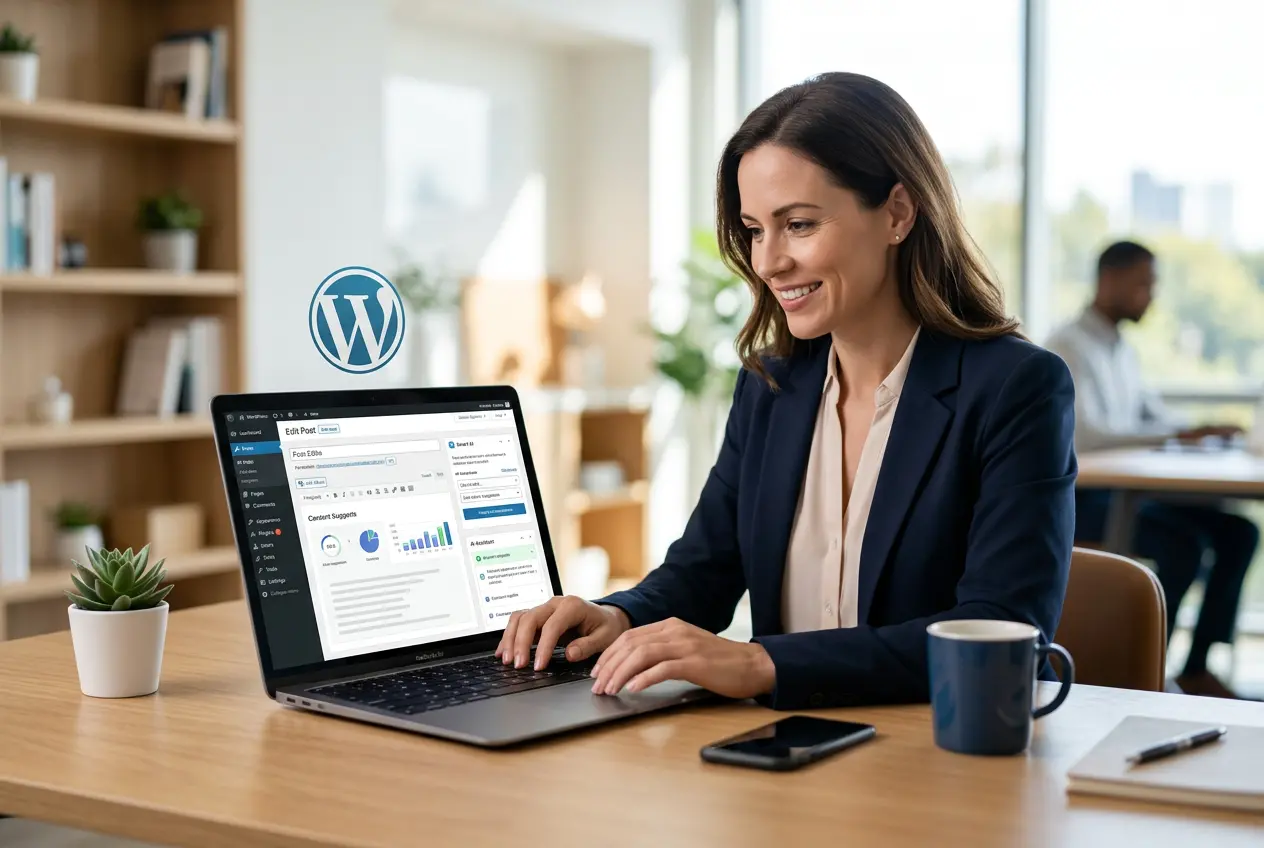
Both posts and pages are created with the block editor (Gutenberg). The visual editor lets you add blocks — paragraphs, images, headings, lists, embeds — and arrange them with a true WYSIWYG experience .
Advanced WordPress Concepts to Enhance Your Site
User Roles and Permissions
WordPress includes predefined user roles that control what each person can do on your site. Knowing these roles helps you manage contributors and keep your site secure: privacy policy
- Administrator: Full control over the entire site.
- Editor: Can publish and manage posts from any author.
- Author: Can publish and manage their own posts.
- Contributor: Can write and edit their own posts but cannot publish them.
- Subscriber: Can manage their profile only.
Widgets and Menus
- Widgets: Small content blocks for sidebars, footers, or other widget areas (recent posts, search, calendars, custom HTML). Manage them at Appearance > Widgets .
- Menus: Build navigation to guide visitors — link to pages, posts, categories, or custom URLs at Appearance > Menus .
WordPress Security Best Practices
Because it’s widely used, WordPress can attract attackers. Protecting your site is essential: fix a hacked wordpress
- Keep Everything Updated: Update the WordPress core, themes, and WordPress Plugins promptly — updates often patch security issues.
- Strong Passwords: Use unique, complex passwords for all accounts, especially admins.
- Reliable Backups: Use a backup plugin and store backups off‑site.
- Security Plugins: Install and configure a reputable plugin like Wordfence or Sucuri.
- SSL Certificate: Run your site over HTTPS. Most hosts include free SSL.
- Limit Login Attempts: Prevent brute‑force attacks by restricting retries.
- Choose Quality Hosting: Good hosts provide server‑level security measures.
WordPress Performance Optimization
Speed matters for user experience and SEO. Try these optimizations :
- Caching: Use a caching plugin (WP Super Cache or WP Rocket) to serve static pages and reduce server load.
- Image Optimization: Compress and resize images before uploading. Plugins like Smush or EWWW Image Optimizer help automate this.
- CDN (Content Delivery Network): Use a CDN to serve static assets from servers closer to visitors — Cloudflare is a popular choice.
- Clean Code and Quality Themes/Plugins: Pick well‑coded themes and plugins to avoid unnecessary bloat.
- Right Hosting: Ensure your hosting plan matches your performance needs.
The Future is Mobile: WordPress and PWAs
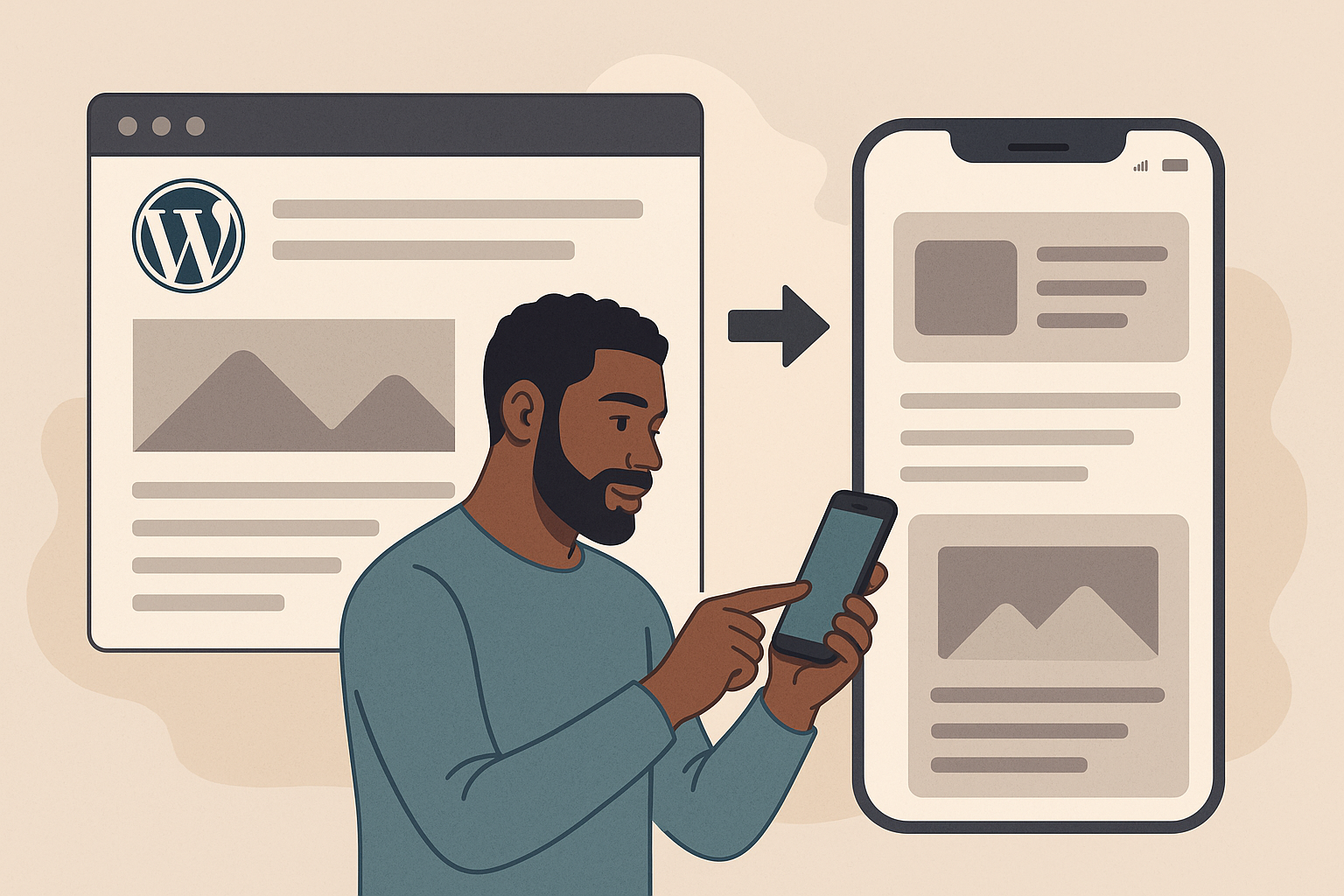
With mobile traffic dominating, delivering a great phone and tablet experience is essential. That’s where PWAs (Progressive Web Apps) come in — and WordPress supports this modern approach.
What is a PWA?
A PWA is a website that behaves like a native mobile app in the browser. Key benefits include:
- Reliability: Loads quickly and can work offline, avoiding the “downasaur” screen.
- Speed: Fast interactions and smooth animations for a native‑like feel.
- Engagement: Can be added to the home screen and use push notifications to re‑engage users.
A PWA effectively blends the reach of the web with the engagement of native apps .
Transforming Your WordPress Site into a PWA
Thanks to WordPress ’s modular design and plugins, turning your site into a PWA is often just a few clicks. Plugins like SuperPWA, PWA for WP & AMP, and WebSuite PWA handle the technical setup and enable features such as: services .
- Service Workers: For offline use and faster load times.
- Web App Manifest: Controls how the app appears and behaves when launched from a home screen.
- Push Notifications: Re‑engage visitors with timely updates.
Adding PWA features improves UX, boosts mobile SEO, and positions your brand for the future of web technology .
"Code is poetry. WordPress is an open-source content management system, a simple and elegant way to build websites."
— The WordPress Foundation
Common WordPress FAQs
Your WordPress Journey Begins Now!
You’ve taken a solid first step into the world of WordPress . From understanding why it’s the leading CMS to exploring themes, plugins, and even PWA possibilities, you now have a practical foundation to build on. WordPress
WordPress empowers millions to create, sell, and connect online. It’s versatile, scalable, and user‑friendly — and while there’s a learning curve, the payoff is worth it.
Now it’s time to put this knowledge into practice: experiment, customize, and launch. Your path to a beautiful, functional WordPress site starts here. Happy building. WordPress
About the Author

Brian Keary
Founder & Lead Developer
Brian is the founder of BKThemes with over 20 years of experience in web development. He specializes in WordPress, Shopify, and SEO optimization. A proud alumnus of the University of Wisconsin-Green Bay, Brian has been creating exceptional digital solutions since 2003.
Expertise
Writing since 2003