

Adding expires headers to WordPress speeds up repeat visits by instructing web browsers to store static assets—such as images, CSS, and JavaScript—in local cache rather than re-downloading them on every request. Google counts page load speed and Core Web Vitals among its search ranking factors. This guide demonstrates how to configure expires headers using WordPress plugins, Apache .htaccess rules, or Nginx server directives.
How Do Expires Headers Impact WordPress SEO and Page Speed?
Expires headers instruct a visitor's web browser whether to fetch static files (such as images, CSS, JavaScript, and PDFs) directly from their local device storage or to request a fresh copy from your web server.
Setting expires headers improves WordPress page speed and search engine performance in several direct ways:
1. Page Speed & Core Web Vitals Impact
- Instant Load Times for Returning Visitors: When repeat users navigate across your pages, their browser reuses locally cached static assets instead of downloading them again, dramatically reducing page render times.
- Reduced HTTP Requests: Decreasing the number of individual server requests per page view speeds up perceived loading performance and keeps the browser rendering pipeline clear.
- Lower Server Load & Bandwidth: By serving files locally on the client side, your origin server processes far fewer requests, keeping server CPU and RAM available for dynamic PHP tasks and database queries.
- Improved Performance Audit Scores: Enabling browser caching satisfies core performance diagnostic checks in testing tools like GTmetrix and Google PageSpeed Insights.
2. Direct & Indirect SEO Impact
- Page Speed as a Ranking Signal: Google uses page load speed and Core Web Vitals as direct ranking factors. Faster loading pages gain an advantage in search performance.
- Lower Bounce Rates & Higher Engagement: Slower sites experience higher user drop-off rates. Quicker load times keep users engaged longer, signaling strong page quality and user experience to search algorithms.
- Efficient Crawl Budget Optimization: When Googlebot encounters a fast, well-cached website with low server latency, it can crawl and index your pages more efficiently across search crawls.
Expires Headers vs. Cache-Control
While expires headers specify an absolute expiration date, modern web performance standards favor Cache-Control (max-age), which sets a relative duration in seconds (e.g., max-age=31536000 for one year). If both are set, modern web browsers prioritize Cache-Control directives over traditional expires headers.
What Are HTTP Expires Headers and How Do They Work?
Expires headers are HTTP rules sent by a web server that tell a browser an exact date and time to keep a file (like an image or style sheet) saved in its local cache before downloading a fresh copy. They speed up repeat page visits.
How They Work
- Local Storage: The browser saves static assets on your device.
- Time Check: When you return, the browser checks the expiration date.
- Fast Load: If the date has not passed, it uses the saved file instead of downloading it again.
Why They Matter
- Speed: Pages load much faster for returning visitors.
- Less Server Work: The server handles fewer requests and uses less bandwidth.
- Better Scores: They help websites pass performance audits like GTmetrix or Google PageSpeed.
Expires vs. Cache-Control
Most users on Stack Overflow agree that modern sites prefer Cache-Control (max-age) because it uses relative seconds rather than a fixed clock time, which avoids computer clock mismatch issues. Expires remains useful as a fallback for older web systems.
How do you Add Expires Headers on WordPress?
You can add Expires headers to your WordPress site by using a performance plugin or by manually editing your web server files.
How can I add expires headers using a WordPress plugin?
To enable expires headers on your site, you can use a WordPress plugin. You can configure browser caching using performance plugins like WP-Optimize or Autoptimize, which allow custom expiration values without unnecessary overhead.
Now go to the CSS & JS section and select the box next to the Set expires header, then input your Expires header lifespan value in seconds. By default, this number is set to 31536000 seconds or 365 days. This can be changed as needed.
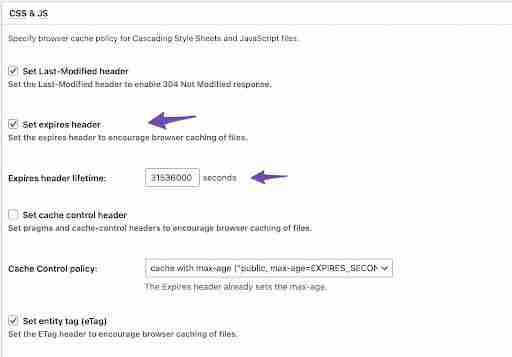
Repeat the above step for the HTML & XML and Media & Other Files sections. Once done, click on Save all settings button.
How do you configure expires headers on an Apache server?
Most traditional WordPress hosts use Apache. You can add the rules by connecting to your site via FTP or your host's File Manager and editing the .htaccess file in your root folder.
For simplicity, we will use the cPanel to establish the connection.
First, you need to log in to your cPanel. Once the connection is established, navigate to File Manager and click on the public_html folder.
Once you’ve entered the folder, look for the .htaccess file. If you still can’t find it, make sure the hidden files option is set to show.
Now, add the following code and place it near the top of your .htaccess file to add expire headers. Don't forget to save after adding the code.
<IfModule mod_expires.c>
ExpiresActive On
ExpiresByType text/html "access 1 month"
ExpiresByType text/css "access 1 month"
ExpiresByType text/javascript "access 1 month"
ExpiresByType text/x-javascript "access 1 month"
ExpiresByType image/jpeg "access 1 year"
ExpiresByType image/jpg "access 1 year"
ExpiresByType image/png "access 1 year"
ExpiresByType image/svg "access 1 year"
ExpiresByType image/gif "access 1 year"
ExpiresByType application/pdf "access 1 month"
ExpiresByType application/javascript "access 1 month"
ExpiresByType application/x-javascript "access 1 month"
ExpiresByType application/xhtml+xml "access 1 month"
ExpiresByType application/x-shockwave-flash "access 1 month"
ExpiresByType image/x-icon "access 1 year"
ExpiresDefault "access 7 days"
</IfModule>
As you can see, the above code implements expires headers for various resource types, including images, video, CSS, JavaSCript, and more. The various file formats have varying expiration dates. You can customize these and the ExpiresDefault header to best suit your needs. See Apache mod_expires module documentation for more information
How Do You Configure Expires Headers on an Nginx Server?
NGINX is not the same as the Apache web server. That is why you will be unable to locate the .htaccess file. So, how do you include expires headers in NGINX?
You’ll need to edit your server’s configuration file. How you access and edit this file varies by the host – you can always reach out to your host’s support team for any assistance.
If you chose to do it yourself, you will need to add the following code snippet to your server block.
location ~* .(jpg|jpeg|gif|png)$ {
   expires 365d;
}

location ~* .(pdf|css|html|js|swf)$ {
    expires 3d;
    }
You can adjust the expiration times for different types of files as per your need. Once you’ve made these changes, save your configuration file and restart Nginx.
See Nginx Module ngx_http_headers_module for more information.
Core Web Vitals: Improving Largest Contentful Paint (LCP) for Returning Visitors
Largest Contentful Paint (LCP) is a core metric within Google’s Core Web Vitals that measures how quickly the main content of a web page renders—typically a large hero image, a featured banner, or a major text block.
For returning visitors, leverage of browser caching through expires headers plays a direct role in optimizing LCP:
- Eliminating Network Latency for LCP Assets: If your page's LCP element relies on a heavy static asset (such as a header image or key styling sheet), expires headers instruct the browser to store that file locally on the user's device. On subsequent visits, the browser loads the image instantly from memory or local disk rather than waiting for a full round-trip server request.
- Bypassing Server Processing Delays: Because the browser does not need to send an HTTP request to your web host for cached assets, network transfer time drops to near zero. This reduces the Time to First Byte (TTFB) for local rendering and dramatically speeds up render times for the largest visible element.
- Unblocking the Critical Rendering Path: By eliminating repeated downloads of shared site assets (like core CSS files and render-blocking fonts), the browser's rendering engine can paint the main visual elements onto the screen almost immediately, resulting in significantly lower LCP scores and an improved Core Web Vitals assessment.
How to Verify Expires Headers Using Chrome DevTools
After configuring expires headers or Cache-Control rules, you should verify that your web server is delivering the correct HTTP response headers to client browsers. You can inspect these headers directly using Chrome DevTools:
- Open Chrome DevTools: Navigate to your website in Google Chrome, right-click anywhere on the page, and select Inspect (or press
F12/Cmd + Option + Ion Mac). - Access the Network Tab: Click on the Network tab at the top of the DevTools panel.
- Reload the Page: Perform a fresh reload (
Ctrl + RorCmd + R). To inspect initial uncached server responses, perform a hard refresh (Ctrl + Shift + RorCmd + Shift + R). - Select a Static Asset: Click on any static resource file in the request list—such as an image (
.png,.jpg), stylesheet (.css), or JavaScript file (.js). - Inspect Response Headers: In the right-hand panel, select the Headers tab and scroll down to the Response Headers section.
- Verify Caching Directives:
expires: Check for a valid future HTTP date string (e.g.,expires: Tue, 12 Oct 2027 12:00:00 GMT).cache-control: Confirm the presence of directives such asmax-age(e.g.,cache-control: public, max-age=31536000).
Note: If both headers are returned, modern browsers prioritize the relative
max-agevalue in thecache-controlheader over the fixed date string in theexpiresheader.
Is there a Modern Alternative to Expires Headers?
Yes, Cache-Control is the modern, preferred alternative to Expires headers. While Expires relies on a strict, absolute date and time (which is prone to clock synchronization errors), Cache-Control utilizes relative times (e.g., in seconds) and includes granular directives.
Here is a breakdown of why Cache-Control is superior and how modern caching works:
- Precedence: If both headers are present, modern browsers ignore the Expires header entirely and defer to Cache-Control rules like max-age.
- max-age: Instead of calculating an exact date, you specify how long a resource remains fresh in seconds. For example, Cache-Control: max-age=604800 caches a file for exactly one week.
- Granularity: It allows for specific directives such as no-cache (forces revalidation), no-store (prevents caching entirely), public (caches on CDNs/proxies), or private (caches only on the user's browser).Because of its flexibility, the standard recommendation is to use Cache-Control as your primary mechanism for freshness and validation.
**RFC 7234 & HTTP Specifications: Why Modern Systems Prefer Cache-Control**
While both Expires and Cache-Control communicate caching policies to client applications, RFC 7234—the official IETF standard governing HTTP/1.1 caching—explicitly establishes Cache-Control as the primary, authoritative mechanism for handling resource freshness and validation.
According to RFC 7234, modern web browsers, proxy servers, and Content Delivery Networks (CDNs) prioritize Cache-Control over Expires for several key architectural reasons:
- Precedence and Directive Override: The HTTP specification explicitly dictates that when a response includes both a
Cache-Control: max-agedirective and anExpiresheader, a compliant HTTP client must ignore theExpiresheader entirely. - Relative Duration vs. Absolute Timestamps: The
Expiresheader relies on an absolute date and time string (e.g.,Expires: Tue, 12 Oct 2027 12:00:00 GMT). If the web server's clock and the client device's system clock are slightly out of sync, resources can immediately be treated as stale or cached indefinitely. In contrast,Cache-Controluses relative duration in seconds (max-age=31536000), completely eliminating system clock mismatch errors. - Granular Cache Control Directives: The HTTP specification introduces explicit directives within
Cache-ControlthatExpirescannot express, including: public/private: Controls whether intermediate edge locations (like CDNs and proxy servers) can store the response or if it must be restricted to the user's local browser storage.no-cache: Forces the client to revalidate the asset with the origin server before serving it from local cache.no-store: Prohibits browsers and intermediate caches from storing any portion of the response, which is vital for sensitive user data.immutable: Indicates that the response body will never change over time, allowing modern browsers to skip revalidation requests entirely during page reloads.
Key Takeaways: Best Practices for WordPress Browser Caching
Expire headers clearly enhance website loading performance. Browser caching dramatically accelerates navigation speed for returning users and optimizes resource delivery across high-traffic sites.
You can use expires headers to manage how different file types are cached and served to your visitors. They can help improve load times for regular visitors while also ensuring that they only view fresh content. That’s why they’re crucial to website performance and overall user satisfaction.
With that said, it’s important to understand how to implement expires headers properly. It will slow down your site if you do it incorrectly. This is particularly true for more dynamic and functioning sites, such as eCommerce sites. If you would like help with this just contact me.
About the Author

Brian Keary
Founder & Lead Developer
Brian is the founder of BKThemes with over 20 years of experience in web development. He specializes in WordPress, Shopify, and SEO optimization. A proud alumnus of the University of Wisconsin-Green Bay, Brian has been creating exceptional digital solutions since 2003.
Expertise
Writing since 2003