
More than 4.5 million online stores run on Shopify today. At the same time, thousands of store owners decide to move away from WordPress each year. Managing hosting accounts, security updates, and broken database tables can take up hours of your work week.
When you migrate your catalog, you move your items, pages, and sales data to a hosted system. A standard Shopify store removes server maintenance tasks so you can focus on selling your goods. You do not need to touch Linux servers or run manual database repairs.
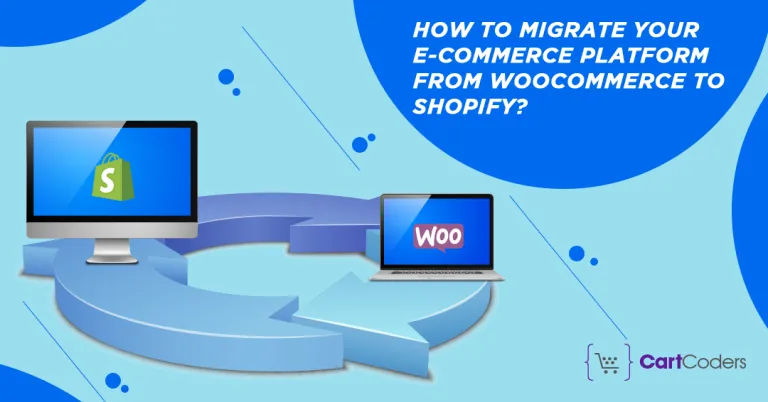
In this guide, I will show you how to transfer your online shop step by step. I will walk you through backups, exports, product tests, and customer transfers. If you follow these practical steps, your store will be ready for business on its new platform.
1. Plan Your Store Transfer Before Making Changes
Moving a shop takes planning. You should review your current catalog and decide what needs to move.
Many stores collect dead products over several seasons. If an item has had zero sales for two years, you might not need it on your new site. Leaving old items behind keeps your new product catalog clean and easy to organize.
You also need to think about timing. Never schedule a store transfer during your busiest holiday weekend or during a major sale. Pick a slow weekday when traffic is light. This gives you time to check details without losing active shoppers.
Make a simple checklist of every item you want to move:
- Product titles, descriptions, and prices
- Product images and variant details
- Blog articles and standard text pages
- Customer account details and billing addresses
- Past orders and tracking receipts
Knowing what you want to move helps you pick the right tools for the job.
Learn how to minimize downtime and ensure a smooth migration process by following best practices and using reliable migration tools.
2. Create a Complete WooCommerce and WordPress Backup
Before you touch any data, save a full copy of your site. This is the golden rule of web design.
A good backup protects your business if an export script crashes your server. Your WordPress files hold your media uploads, theme templates, and custom code. Your MySQL database holds your customer records, passwords, and transaction histories.
You can create an archive using a WordPress plugin such as UpdraftPlus or through your web hosting control panel. Download both the database file and your complete wp-content folder to your computer. Store a secondary copy on an external hard drive or secure cloud storage.
Make sure you do not skip your customer records. If anything goes wrong during file transfers, you can restore your original store within minutes. Once your local files are safely saved, you are ready to prepare your data.
3. Export Product Data From WooCommerce Using All Export
The fastest way to export your data is to use a plugin. I recommend testing a small batch first to make sure the formatting is right.
To pull your data out of WordPress, you can use the All Export tool from the official WordPress plugin directory. This plugin turns your database rows into clean spreadsheet files that other platforms can read.
First, install the plugin inside your WordPress dashboard. Go to the export menu and select WooCommerce products as your target data type. The plugin lets you drag and drop columns so you can match the default spreadsheet format used by Shopify.
Next, include your key fields:
- Item handle or slug
- Title and description body
- Stock keeping unit and barcode numbers
- Price and sale prices
- Image web addresses
- Variant options like size and color
Once you pick your fields, run the process to export your catalog into a CSV file. Save this file to your computer desktop. Open it in a spreadsheet program like Microsoft Excel or Google Sheets to inspect the rows. Check that your product names match their prices and that image links open correctly in a browser.
4. Test Your CSV Import With Five Products
Do not upload your entire catalog all at once. If your spreadsheet has a broken column, you could create hundreds of messy product entries in seconds.
Instead, open your CSV file and copy out a tiny test batch. Take just five items from your list and paste them into a separate testing file. Save this small file with five rows on your computer.
Now, log in to your new merchant dashboard. Open the products screen and look for the option to import catalog items. Choose your five-item file and click the upload button.
Shopify gives you a preview screen that shows how columns match up with its built-in product fields. Review this screen carefully:
- Does the product name match the title box?
- Do your prices show up with proper decimal places?
- Did the photos pull in from your old WordPress media library?
- Are the size and color dropdowns grouped together?
If the sample items look good, delete those test entries from your dashboard. Now you can return to the products screen and upload your full CSV file with confidence.
If you notice odd text symbols or missing images, correct them in your main spreadsheet first. Fixing errors in a spreadsheet takes two minutes. Fixing broken products one by one inside an admin panel can take all day.
5. Move Your WordPress Blog Posts and Standard Pages
A good store contains more elements alongside items for sale. Your site likely has an about page, a shipping policy, contact details, and helpful blog posts.
You do not want to lose your articles when you switch platforms. Informative articles bring visitors from search engines every week. Fortunately, you can move written content without starting from scratch.
You can use your export tool to generate a CSV file for WordPress posts and pages. Download this file and review the text formatting. Clean out old shortcodes that belonged to WordPress themes or page builders, since those codes will not work on your new theme.
Once your file is clean, head to your admin panel. Under the online store section, find your blog posts area and select the import button. Upload your file to populate your blog.
Do the exact same thing for standard pages like your contact page and terms of service. After the upload finishes, open each page to verify that headings, line breaks, and photos appear clean.
6. Transfer Customers and Order Records With LitExtension Connector
Basic CSV file imports work well for catalog items and articles. However, basic spreadsheets do not transfer customer accounts or past order logs into Shopify.
Your historical sales data is valuable. It helps you track repeat buyers, honor warranty requests, and see past revenue numbers. To move this data, you need an automated migration bridge.
The LitExtension Connector provides a safe bridge between your WordPress database and your new shop. This tool handles the deep database relationships that regular spreadsheets cannot process on their own.
To use this bridge, download the connector package from the migration service. Unzip the file on your computer. You will see a small folder containing access scripts.
Next, open your preferred FTP program or your web hosting file manager. Upload the connector folder straight into the root directory of your WordPress installation. This root directory is the main folder where your wp-config.php file lives.
Once the connector is uploaded, return to your migration setup screen. Enter your store web addresses and test the connection. The tool reads your WooCommerce database directly and starts copying your data:
- Customer names, phone numbers, and email accounts
- Saved shipping and billing street addresses
- Order histories with dates, line items, and totals
- Order fulfillment statuses and tracking notes
Because passwords use strong security hashing, customers will need to set a new password on their first visit. You can send an automatic account invite email once your store goes live.
7. Build Your Shopify Store Front and Layout
Once your data lives inside your new platform, you need to make the shop look great for your shoppers.
Shopify uses an intuitive theme system. Browse the official theme store and pick a clean template that matches your brand style. Look for themes with quick product filters, clean typography, and fast page speeds. You can study official documentation on the Shopify Help Center to learn how theme sections work.
After you install a theme, configure your main navigation menus:
- Add your top categories to the main header menu
- Add privacy policies, shipping guidelines, and contact links to the footer
- Assign your imported items to automated collections using product tags
Next, set up your payment processors. Turn on Shopify Payments or connect your third-party merchant account so shoppers can use credit cards. Add secondary checkout options like PayPal or digital wallets to give buyers flexible choices.
Finally, adjust your shipping zones and tax rates. Enter your warehouse location and specify flat rates, weight-based rates, or live carrier rates. Make sure to run a real test order using test payment modes before you launch. This ensures that order confirmation emails go out without a hitch.
8. Set Up 301 URL Redirects for Your Web Addresses
Setting up 301 URL redirects is a key step that many store owners forget. When you change platforms, your web page addresses change too.
In WooCommerce, an item address often looks like yourstore.com/product/cotton-shirt/. In Shopify, that same product lives at yourstore.com/products/cotton-shirt/. Notice the extra letter in the folder path.
If a buyer clicks an old link from Google, an email, or a bookmark, they will hit a 404 error page. Broken links cause shoppers to leave immediately, and search engines will drop your search rankings. Learn more about how servers handle link routing at the HTTP status codes entry on Wikipedia.
To fix this problem, you must create 301 permanent redirects:
- Open your old WordPress sitemap to find all existing product and category addresses
- Open your new store navigation settings and click on URL redirects
- Enter the old path in the source field
- Enter the new path in the target field
- Save your redirect rule
Create a rule for every product, collection, and blog post. If you have hundreds of addresses, compile them into a spreadsheet and upload them to the redirect manager all at once. When you redirect every address, visitors find your products without interruption, and your organic search traffic remains steady.
9. Switch Your Domain Name and Test the Live Checkout
Now that your catalog is loaded, your theme is styled, and your redirects are ready, you can point your domain name to your new home.
Your domain name is the web address shoppers type into their browser. You do not need to buy a brand new domain name. You simply point your existing domain records to your new host.
Log in to the service where you bought your domain name. This could be GoDaddy, Namecheap, or your web hosting provider. Locate your DNS management records.
You will need to update two primary DNS records:
- Point your root A Record to the Shopify server IP address:
23.227.38.65 - Point your CNAME Record for
wwwtoshops.myshopify.com
DNS changes can take between two and twenty-four hours to update across the globe. During this time, some shoppers will see your old site while others see your new one. Keep both sites intact until the domain connection settles completely.
Once your domain points to the new site, visit your store on a smartphone and a desktop computer. Add an item to the shopping cart. Walk through the checkout process and complete a live purchase using a real credit card.
Confirm that the money enters your account, the order appears in your dashboard, and your inbox receives an order receipt. After verifying that everything functions properly, refund your test purchase. Your new store is officially open for business.
Troubleshooting Common Migration Hurdles
Store migrations rarely go completely according to plan. Small snags happen, but they are easy to solve when you know where to look.
Here are a few common issues and how to resolve them quickly:
Missing Product Images
Sometimes an imported product appears with a blank image box. This usually happens if your old WordPress server blocks automated download requests. Keep your old WordPress site online until your new store finishes copying all product photos. If an image fails to load, verify that the image link inside your CSV spreadsheet starts with https:// and opens publicly in an incognito window.
Messy Variant Options
If an item comes in five sizes and three colors, WooCommerce handles that data through product attributes. Sometimes an import creates fifteen individual standalone products instead of one item with fifteen variations. To prevent this, check your CSV columns before running the full import. Make sure your variant options use the exact column headers recognized by your new platform.
Missing Customer Passwords
Clients often ask why customer passwords did not transfer. Store platforms encrypt passwords with unique security algorithms. No platform can export a raw, unencrypted password. This is a security safeguard that protects consumer data. Simply send an email invite to your customer list after launch, inviting them to activate their account and choose a new password.
Dropped Search Rankings
If your site traffic dips after a move, check your Google Search Console account. Look for sudden spikes in 404 page errors. This almost always points to missing URL redirects. Match up the broken addresses shown in your error report with their new counterparts to recover your organic search traffic. You can study best practices on search engine optimization at Wikipedia to protect your rankings.
Learn how to minimize downtime during a migration with this step-by-step guide to help youavoid these troubleshooting issues.
Comparing WooCommerce and Shopify Operations
Running an online business requires you to choose the platform that fits your daily schedule. Both systems are capable, but they require very different amounts of maintenance.
Maintenance and Security
WooCommerce runs on your personal web host. That means you are responsible for updating the WordPress core software, updating plugins, and renewing your SSL certificates. If a database table crashes or your server runs out of memory, your store goes down until you repair it.
A hosted store runs on dedicated infrastructure. The platform company manages software updates, server memory, payment security standards, and daily backups. You never have to log in via FTP to repair a corrupted script.
Cost Structure
WooCommerce software is free to download, but running it is not free. You must pay for reliable web hosting, security firewalls, paid extensions, and developer support when code breaks.
A hosted platform charges a predictable monthly subscription fee along with payment processing fees. While the monthly cost is fixed, you do not have unexpected server repair bills when traffic surges.
Customization and Flexibility
WordPress gives you total access to the underlying code. You can modify any PHP file or edit database tables directly. This is helpful for stores with unusual business models.
Shopify limits direct access to core server files, but it provides a clean visual theme customizer and an extensive application ecosystem. For most retail stores, this structure provides more than enough flexibility while eliminating technical headaches.
When to Hire a Migration Company
While migrating data manually using CSV files or basic plugins works well for smaller stores, doing it yourself isn't always the most efficient or safest route. As your e-commerce operation grows, transferring databases becomes significantly more complex.
Here are a few scenarios where partnering with a professional migration agency or specialist is the smarter choice:
- Large Product Catalogs & Complex Variants: If you have thousands of SKUs, complex product options, custom attributes, or extensive customer and historical order data, manual exports can quickly become overwhelming and error-prone.
- Preserving Critical Data Relationships: A basic DIY migration often misses crucial connections between historical customer accounts, order histories, applied discounts, and reward points. Experts ensure these data sets link together accurately in Shopify without breaking user histories.
- Protecting Your SEO & Traffic: Mismanaged URL redirects during a platform shift can lead to broken links, standard 404 errors, and a severe drop in organic search rankings. Migration professionals configure comprehensive, 1-to-1 301 redirects to safeguard your established domain authority.
- Custom Designs & Advanced Integrations: If your legacy WooCommerce site uses custom PHP templates, tailored functionality, or third-party API integrations, standard migration tools won't transfer them automatically. A specialized team can recreate your store's exact look and feel—or upgrade you to a faster, modern architecture—while ensuring all your essential app integrations carry over smoothly.
- Minimizing Downtime & Business Risk: E-commerce downtime directly impacts revenue. Working with experienced professionals ensures thorough pre-launch testing on a staging environment, allowing for a seamless transition with zero disruption to active shoppers.
If you would rather focus on running your business than wrestling with CSV formatting, spreadsheet troubleshooting, and technical setups, letting experts handle the heavy lifting gives you peace of mind and guarantees a successful launch.
Post-Launch Store Checklist
Once your store is live, take an hour to complete this final checklist:
- Set up Google Analytics and link your search tracking tools
- Check your transactional email templates for correct logos and contact info
- Connect your email newsletter service to sync new customer signups
- Remove any test orders and clear your test data logs
- Remove password protection from your storefront so public shoppers can enter
- Cancel your old web hosting account only after thirty days of smooth operation
Taking these small steps guarantees that your new site runs smoothly from day one.
Conclusion
Switching platforms might feel like a huge chore, but it does not have to overwhelm you. Breaking the job into simple steps keeps your data safe and protects your sales revenue.
Start by taking a full archive of your WordPress files and database. Export your products using a CSV spreadsheet, and always test a sample batch of five items first. When you need to move customer accounts and past order records, use a dedicated connector tool to link your databases.
Finally, protect your hard-earned traffic by adding permanent 301 redirects for every old web address. Once your domain records update, test your checkout to ensure buyers enjoy a smooth shopping experience.
If you run into issues, don't worry—we can handle the migration for you at BKThemes. With the right preparation, your new shop will be faster, safer, and ready to grow.
Frequently Asked Questions (FAQ)
Will migrating my store delete my existing WooCommerce website?
No. Exporting your data only reads your catalog; it does not erase your existing site. Your WordPress store will remain active until you change your domain records or cancel your hosting plan. I recommend keeping your old site online in a hidden staging area for at least a month after your move. This gives you a reference point if you ever need to look up an old order record.
Can I import customer credit card numbers into my new store?
No, you cannot export or import credit card numbers. Payment gateways store card numbers in encrypted vaults to follow strict banking security laws. When you switch platforms, your customers must type in their payment details again during their next checkout. You can, however, move names, billing addresses, and order histories without any trouble.
How long does a standard store migration take from start to finish?
The time required depends on the size of your product catalog. A small shop with under one hundred items can be moved in an afternoon. A store with thousands of products, complex variants, and years of customer records usually takes two to three days to organize, test, and redirect properly. Taking time to test your data prevents costly errors later.
Do I need to buy a brand new domain name for my new store?
No, you do not need a new domain name. You can keep your existing web address and simply point it to your new shop. When you are ready to switch, update the A record and CNAME record inside your domain registrar dashboard. Your shoppers will continue using the exact same web address they have always used to find your business.
What happens to my search engine rankings when I switch platforms?
Your search rankings can stay steady if you set up 301 URL redirects for every old page. Search engines understand that sites change structural designs over time. A permanent 301 redirect tells Google where the new page lives and passes your hard-earned ranking authority to the new web address. If you skip this step, search engines will find broken 404 pages and your traffic will decline.
About the Author

Brian Keary
Founder & Lead Developer
Brian is the founder of BKThemes with over 20 years of experience in web development. He specializes in WordPress, Shopify, and SEO optimization. A proud alumnus of the University of Wisconsin-Green Bay, Brian has been creating exceptional digital solutions since 2003.
Expertise
Writing since 2003