
A step-by-step tutorial for auditing theme code, eliminating bloat, and integrating UGC without sacrificing Core Web Vitals
Learn to audit your Shopify theme's HTML structure, remove performance-killing code bloat, and properly integrate user-generated content. Achieve Core Web Vitals thresholds that boost both speed and search rankings.
TL;DR
- Clean HTML code directly impacts SEO rankings because Google requires LCP under 2.5s, INP under 200ms, and CLS under 0.1 for top positions
- App bloat is the biggest speed killer with 87% of Shopify merchants using apps that often leave behind code even after uninstallation, causing 40% slower load times.
- User-generated content needs lazy loading to prevent review widgets and testimonials from blocking initial page render while preserving social proof.f
- Minifying CSS/JS and inlining critical CSS can achieve LCP of 1.0s on desktop and 2.4s on mobile when combined with code clean.up
- Only 48% of Shopify stores pass Core Web Vitals on mobile, so implementing these optimizations gives you a competitive SEO advantage.
What You Will Achieve
By the end of this tutorial, you will transform your Shopify store's performance by implementing clean HTML code practices that directly improve both site speed and SEO rankings. You will learn to audit your theme's code structure, remove performance-killing bloat, and properly integrate user-generated content without sacrificing load times.
Your success criteria: achieve LCP under 2.5 seconds, INP under 200ms, and CLS under 0.1 on mobile devices. These Core Web Vitals thresholds determine whether Google considers your store fast enough for top search rankings.
Stores following these exact steps have achieved 40% faster load times by addressing code bloat alone.
Prerequisites and Setup Checklist
Before starting, confirm you have these essentials ready. Missing any item will block your progress.
- Shopify admin access with permission to edit theme code (Online Store > Themes > Edit code)
- Google PageSpeed Insights account at pagespeed.web.dev for baseline measurements
- Theme backup created (Actions > Duplicate) before any code changes
- Chrome DevTools available (right-click > Inspect > Network tab)
- Current Core Web Vitals scores documented for comparison
Time estimate: 2-3 hours for complete implementation. Potential blockers include locked theme files (contact theme developer) or heavily customized themes requiring help from a certified Shopify expert.
Why Clean Code Matters for Shopify SEO Speed Optimization
Here is the reality: just 48% of Shopify stores meet all Core Web Vitals thresholds on mobile. The primary culprit is unoptimized code bloat from apps, legacy snippets, and poor Liquid template loops.
This tutorial uses a code-first approach because clean HTML code delivers the highest impact per hour invested. Alternative methods like image optimization help, but code hygiene addresses root causes that compound across every page load. For deeper context on why this matters, see our guide on how clean code improves SEO.
Expect moderate difficulty if you have basic HTML familiarity. No programming expertise required, just careful attention to instructions.
Step 1: Measure Your Baseline Performance
Action: Run your homepage and one product page through Google PageSpeed Insights. Document these exact metrics: LCP (seconds), INP (milliseconds), CLS (decimal), and Performance Score (0-100).
Navigate to pagespeed.web.dev, enter your store URL, and click Analyze. Wait 30-60 seconds for results. Screenshot both mobile and desktop reports.
Expected result: You will see specific scores and a list of opportunities. Median mobile LCP across Shopify stores is 2.26 seconds, so if yours exceeds this, you have significant room for improvement.
Common failure: If PageSpeed shows "Origin Summary" instead of specific page data, your page has insufficient traffic history. Use the URL-specific data instead.
Step 2: Audit Your Installed Apps for Code Bloat
Action: Review every installed app and identify which injects code into your theme. 87% of Shopify merchants use apps, and many leave behind code even after uninstallation.
Go to Settings > Apps and sales channels. For each app, note whether it modifies your theme (review widgets, pop-ups, analytics trackers). Open your theme code editor and search for each app's name in the theme. liquid and other template files.
Expected result: You will find 3-10 script injections across your theme files. Legacy review widgets commonly add a 200-500ms delay per page.
Common failure: Some apps hide their code using generic variable names. Search for terms like "widget," "embed," and "tracking" if app names yield no results.
Step 3: Remove Unused App Code and Legacy Snippets
Action: Delete code blocks from uninstalled apps and unused theme features. This single step often delivers the largest speed improvement.
In your theme editor, open the theme. liquid. Locate script tags, and Liquid includes those references to apps you no longer use. Before deleting, copy the code block to a text file as a backup. Delete the entire block, including opening and closing tags.
Expected result: Your theme .liquid file becomes shorter and cleaner. Re-test in PageSpeed Insights. Expect 0.3-1.0 second LCP improvement.
Common failure: Deleting the wrong code breaks your theme. Always test on a duplicate theme first. If your store breaks, restore from your backup immediately.
Step 4: Optimize Liquid Template Loops
Action: Identify and fix inefficient Liquid loops that slow server-side rendering. Poor loops cause backend delays that PageSpeed cannot directly measure but impact real user experience.
Search your theme files for {% for %} statements. Look for nested loops (a for loop inside another for loop) and loops that query large collections. Replace collection.products with collection. products | limit: 12 where appropriate.
{% comment %} Before: Slow nested loop {% endcomment %}
{% for product in collection.products %}
  {% for variant in product.variants %}
    {{ variant.title }}
  {% endfor %}
{% endfor %}

{% comment %} After: Limited and optimized {% endcomment %}
{% for product in collection.products limit: 8 %}
  {{ product.title }}
{% endfor %}
Expected result: Faster Time to First Byte (TTFB) in your PageSpeed results. Target TTFB under 600ms.
Common failure: Limiting product loops breaks pagination. Only apply limits to supplementary sections like "Related Products," not main collection pages.
Step 5: Minify CSS and JavaScript Files
Action: Compress your theme's CSS and JS files to reduce file sizes without changing functionality. Optimized stores achieve TBT of 50-70ms through this technique.
Use a minification tool like CSS Minifier or JS Minifier. Copy your theme's main CSS file content, paste it into the minifier, copy the output, and replace your original file content.
Expected result: File sizes reduce by 20-40%. Your browser's Network tab will show smaller file downloads.
Common failure: Minification breaks code with syntax errors. If your styles break, restore the original file and check for unclosed brackets or missing semicolons before re-minifying.
Step 6: Inline Critical CSS for Above-the-Fold Content
Action: Extract CSS rules needed for initial page render and inline them directly in your HTML head. This eliminates render-blocking CSS for visible content.
Use the Critical Path CSS Generator to identify critical styles. Copy the generated CSS. In your theme. liquid file, add a style tag in the head section containing only this critical CSS.
    /* Critical CSS here - only styles for above-fold content */
    .header { display: flex; }
    .hero { height: 60vh; }
Expected result: LCP improves because the browser renders visible content before downloading full stylesheets. Target improvement: 0.2-0.5 seconds.
Common failure: Too much inlined CSS increases the HTML file size. Keep critical CSS under 14KB to fit within the first network round trip.
Step 7: Implement Lazy Loading for User-Generated Content
Action: Configure reviews, testimonials, and other user-generated content to load after initial page render. This addresses user-generated content's impact on performance without removing valuable social proof.
For review widgets, check your app settings for "lazy load" or "load on scroll" options. If unavailable, wrap the review section in a container and use the Intersection Observer API to load content when users scroll to it.
const reviewSection = document.querySelector('.reviews-container');
const observer = new IntersectionObserver((entries) => {
  if (entries[0].isIntersecting) {
    // Load reviews here
    loadReviews();
    observer.disconnect();
  }
});
observer.observe(reviewSection);
Expected result: Initial page load excludes review widget weight. LCP and INP both improve because the main thread handles fewer tasks during critical rendering.
Common failure: Lazy-loaded content causes layout shifts (CLS). Always reserve space for the content container using min-height in CSS.
Step 8: Remove Render-Blocking Third-Party Scripts
Action: Add defer or async attributes to non-critical scripts. Heavy third-party JS causes poor INP in over half of Shopify stores.
In theme. liquid, locate all script tags. Add defer to scripts that do not affect above-fold content. Add async to independent scripts like analytics.
{% comment %} Before {% endcomment %}

{% comment %} After {% endcomment %}
Expected result: INP improves because the main thread is not blocked during initial load. Median INP across Shopify stores is 153ms. Target under 150ms.
Common failure: Using defer on scripts that other scripts depend on breaks functionality. Test thoroughly after each change.
Step 9: Validate Semantic HTML Structure
Action: Ensure your HTML uses proper semantic elements for SEO crawlability. Clean semantic structure helps search engines understand your content hierarchy.
Review your product template for proper heading hierarchy (one H1, logical H2-H3 nesting). Verify that product descriptions use paragraph tags, not just div containers. Add schema markup for products if missing.
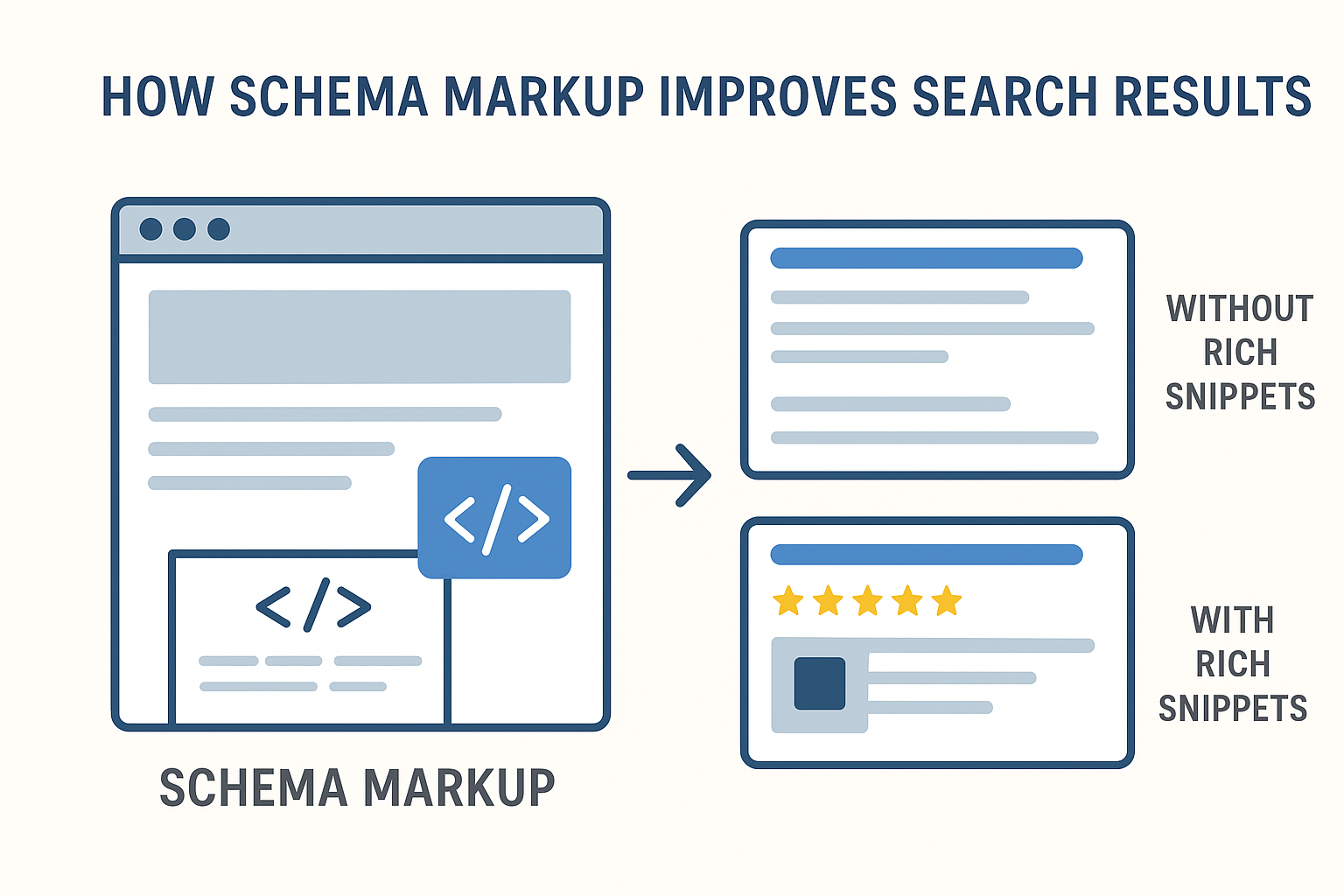
Expected result: Google Search Console shows improved crawl stats. Rich results become eligible for your product pages. For comprehensive guidance on maintaining code quality, explore our website management best practices.
Common failure: Multiple H1 tags confuse search engines. Use browser extensions like HeadingsMap to visualize your heading structure.
Step 10: Test and Document Final Performance
Action: Re-run PageSpeed Insights on the same pages you tested initially. Compare results against your baseline documentation.
Clear your browser cache and Shopify's cache (Online Store > Themes > Actions > Clear cache). Wait 24 hours for CDN propagation, then run PageSpeed Insights again on both the homepage and product page.
Expected result: LCP under 2.5s, INP under 200ms, CLS under 0.1. Optimized stores achieve LCP of 1.0s on desktop and 2.4s on mobile.
Common failure: Scores fluctuate between tests. Run 3 tests and average the results for an accurate comparison.
Configuration and Customization Options
Adjust these settings based on your store's specific needs:
- Lazy load threshold: Default is 200px before the viewport. Increase to 400px on slow connections to prevent content pop-in.
- Critical CSS size: Default 14KB maximum. Reduce to 10KB for mobile-first stores with simple above-fold designs.
- Product loop limits: Default 8-12 products. Increase to 16-20 for catalog-heavy stores, but monitor LCP impact.
- Script defer vs async: Use defer for scripts that must execute in order. Use async for independent tracking scripts.
Must-change settings: Always update your critical CSS when changing theme layouts. Always re-test after adding new apps.
Verification and Testing Procedures
Verify your implementation with these specific tests:
- Core Web Vitals: All three metrics (LCP, INP, CLS) pass in PageSpeed Insights mobile view
- Visual regression: Homepage, collection page, and product page display correctly on mobile and desktop
- Functionality: Add to cart, checkout, and search work without JavaScript errors (check Console tab)
- User-generated content: Reviews load when scrolled into view, not on initial page load
Edge cases to verify: Test on a 3G connection using Chrome DevTools throttling. Test with an empty cart and a full cart. Test logged-in and logged-out states.
Common Errors and Fixes
Error: "Uncaught ReferenceError" in Console
Symptom: JavaScript features stop working after adding defer attributes.
Cause: A script tries to use a function before its dependency loads.
Fix: Remove defer from the dependency script, or wrap the dependent code in a DOMContentLoaded event listener.
Error: Layout shifts after lazy loading implementation
Symptom: CLS exceeds 0.1 despite other improvements.
Cause: Lazy-loaded content has no reserved space.
Fix: Add explicit height and width attributes or min-height CSS to containers before content loads.
Error: Styles missing after CSS minification
Symptom: Page elements appear unstyled or broken.
Cause: Minifier removed necessary whitespace or encountered syntax errors.
Fix: Validate original CSS at W3C CSS Validator before minifying. Fix errors first.
Error: Reviews not loading at all
Symptom: The user-generated content section stays empty.
Cause: Intersection Observer is not triggering, or the review API is failing silently.
Fix: Add console.log statements to verify observer triggers. Check the Network tab for failed API requests.
Error: PageSpeed scores worse after changes
Symptom: Performance decreased instead of improved.
Cause: Critical CSS is missing essential styles, causing additional repaints.
Fix: Regenerate critical CSS using the actual live page, not a local version. Include all above-fold element styles.
Next Steps and Extensions
You have established a clean code foundation. Here is how to build on it:
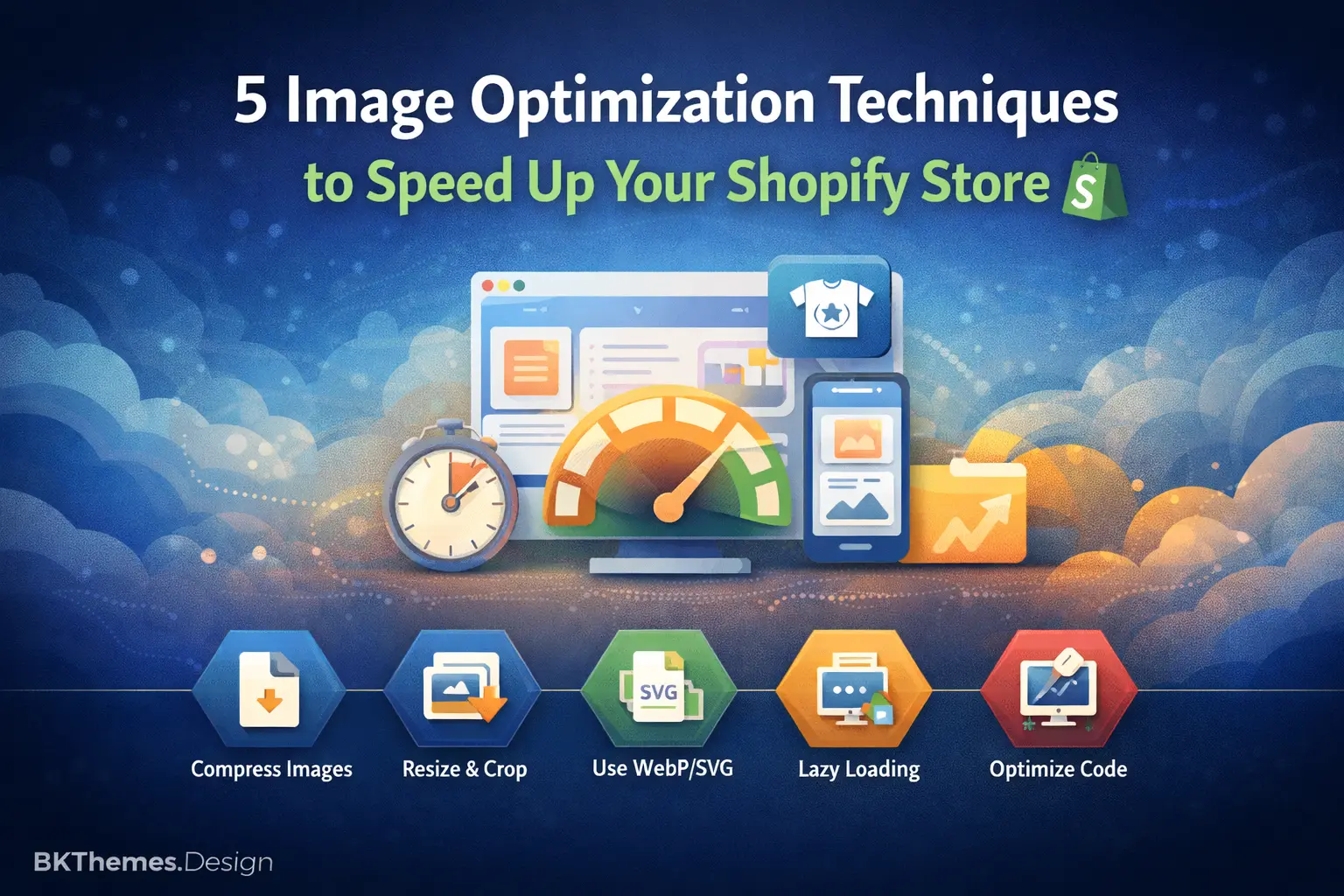
- Image optimization: Implement WebP format and responsive srcset attributes for further LCP improvements. See our detailed guide on mastering Shopify speed.
- Ongoing monitoring: Set up Core Web Vitals tracking in Google Search Console to catch regressions early. Consider our website maintenance services for continuous optimization.
- Advanced caching: Implement service workers for returning visitors to achieve near-instant page loads.
Each extension builds on your clean code foundation. Without the work you completed today, these advanced techniques would deliver diminished returns.
Frequently Asked Questions
Sources
- https://www.blackbeltcommerce.com/shopify-best-practices/
- https://pagespeed.web.dev/
- https://sherocommerce.com/shopify-speed-benchmarks/
- https://bkthemes.design/blog/does-clean-code-improve-seo
- https://optiexperts.co.uk/blogs/optiexperts-blogs/shopify-speed-optimization-in-2025-from-slow-to-selling-fast
- https://www.toptal.com/developers/cssminifier
- https://www.toptal.com/developers/javascript-minifier
- https://www.sitelocity.com/critical-path-css-generator
- https://bkthemes.design/blog/comprehensive-website-management-best-practices
- https://chromewebstore.google.com/detail/headingsmap/flbjommegcjonpdmenkdiocclhjacmbi
- https://jigsaw.w3.org/css-validator/
- https://bkthemes.design/blog/mastering-shopify-speed-expert-strategies-to-drastically-reduce-your-stores-loading-time
- https://bkthemes.design/blog/ensure-lasting-success-with-our-website-maintenance-services
About the Author

Brian Keary
Founder & Lead Developer
Brian is the founder of BKThemes with over 20 years of experience in web development. He specializes in WordPress, Shopify, and SEO optimization. A proud alumnus of the University of Wisconsin-Green Bay, Brian has been creating exceptional digital solutions since 2003.
Expertise
Writing since 2003