A beginner-friendly comparison of the top 3 WordPress SEO tools, plus step-by-step setup instructions
Learn how to compare the best SEO plugins for small business websites and configure your choice in under an hour. Walk away with optimized meta titles, a submitted sitemap, and a green SEO health score.
TL;DR
- Choose one plugin only - Multiple SEO plugins create conflicts that hurt rankings. Pick Yoast for simplicity, Rank Math for features, or AIOSEO for guided setup
- Complete the setup wizard - Every major plugin includes an SEO plugin setup wizard that configures 80% of settings correctly in under 15 minutes
- Submit your sitemap immediately - Generate your XML sitemap and submit it to Google Search Console. This is the fastest path to getting indexed
- Optimize five priority pages first - Focus on the homepage, main service page, and top content. Custom meta titles and descriptions beat default settings every time
- Free versions work fine - Premium upgrades help at scale, but most small businesses achieve solid rankings without paying for plugin upgrades
What You Will Achieve
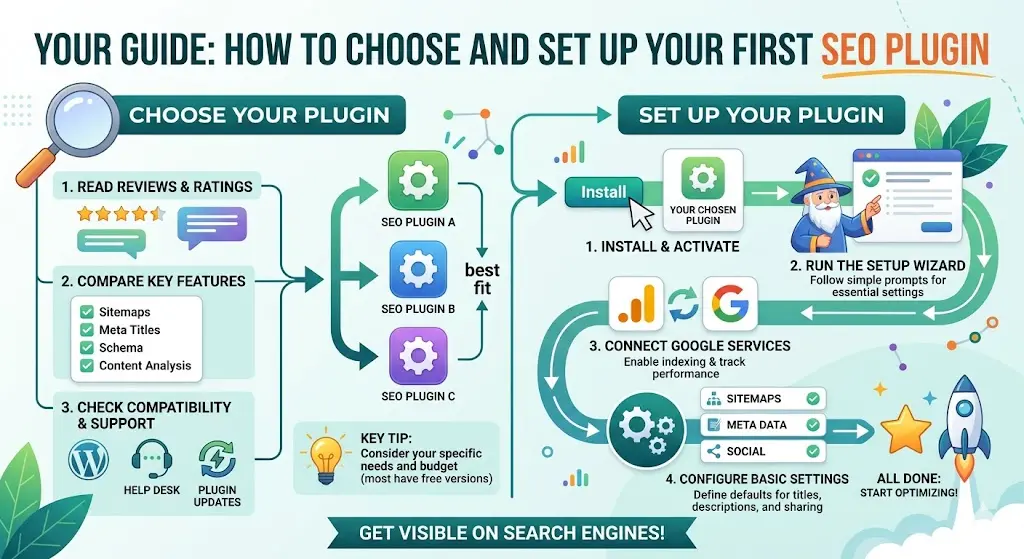
By completing this tutorial, you will have a fully configured SEO plugin running on your WordPress site. You will understand how to compare the top three SEO tools for beginners, select the right option for your business needs, and execute a complete setup using the SEO plugin setup wizard.
Your success criteria: green checkmarks on your SEO health check, a generated XML sitemap submitted to Google Search Console, and optimized meta titles on your five most important pages. Total time investment: 45-60 minutes.
Prerequisites and Setup Checklist
Before starting, verify you have these essentials ready:
- WordPress admin access with plugin installation permissions
- Google Search Console account (free, takes 10 minutes to set up)
- Your target keywords for 3-5 priority pages
- Business information, including name, logo, and social profiles
- 30 minutes of uninterrupted time for initial configuration
Potential blockers: Some managed hosting providers restrict plugin installations. Contact your host if you encounter permission errors. Also, confirm your WordPress version is 6.0 or higher for full compatibility.
Why This Approach Works
Small business owners often install multiple SEO plugins, hoping for better results. This creates conflicts, slows your site, and generates duplicate meta tags that confuse search engines. One properly configured plugin outperforms three poorly configured ones every time.
This tutorial focuses on the three most reliable options for beginners: Yoast SEO with over 5 million active installations, All in One SEO (AIOSEO) with over 3 million active installations, and Rank Math. Each offers a free tier sufficient for most small business needs.
We will walk through an SEO plugin comparison framework, then execute the setup step-by-step. Expect moderate difficulty. If you can install WordPress themes, you can complete this tutorial.
Step 1: Audit Your Current SEO Plugin Situation
Action: Log in to your WordPress dashboard. Navigate to Plugins → Installed Plugins. Search for "SEO" in the search box.
Document any existing SEO plugins you find. Common ones include Yoast, AIOSEO, Rank Math, SEOPress, or The SEO Framework. If you have multiple SEO plugins active, this explains potential ranking issues.
Expected result: A list of zero to three SEO-related plugins currently installed.
Common failure: You find two active SEO plugins. Fix: Deactivate one before proceeding. Do not delete yet. You may need to migrate settings.
Step 2: Compare Plugins Using the Decision Matrix
Action: Score each plugin against your specific business requirements using this framework:
- Setup complexity (1-5, lower is easier): Yoast scores 2, AIOSEO scores 2, Rank Math scores 3
- Free feature completeness: Rank Math offers the most free features, including schema markup and keyword tracking
- WooCommerce integration: All three support eCommerce, but AIOSEO and Rank Math provide deeper WooCommerce SEO tools in their free versions
- Content optimization tools: Yoast pioneered the traffic light system. Rank Math offers similar scoring with more granular feedback
Expected result: A clear winner based on your priorities. Most beginners choose Yoast for simplicity or Rank Math for features.
Common failure: Analysis paralysis from feature comparison. Fix: If you sell products, choose Rank Math. If you publish content primarily, choose Yoast. Both work well.
Step 3: Install Your Chosen Plugin
Action: Navigate to Plugins → Add New. Type your chosen plugin name in the search box. Click Install Now on the correct plugin (verify the author matches: Yoast by Team Yoast, AIOSEO by All in One SEO Team, Rank Math by Rank Math).
After installation completes, click Activate.
Expected result: The plugin appears in your left sidebar menu. Yoast shows as "Yoast SEO," AIOSEO shows as "All in One SEO," and Rank Math shows as "Rank Math."
Common failure: "Installation failed: Could not create directory." Fix: Contact your hosting provider about file permissions, or install manually via FTP using the plugin ZIP file from WordPress.org plugin directory.
Step 4: Complete the SEO Plugin Setup Wizard
Action: Click the setup wizard prompt that appears after activation. If dismissed, find it under the plugin's main menu item.
For Yoast SEO: Navigate to Yoast SEO → General → First-time configuration. Complete all five steps: SEO data optimization, site representation, social profiles, personal preferences, and finishing configuration.
For Rank Math: Navigate to Rank Math → Dashboard → Setup Wizard. Select "Easy" mode for beginners. Complete site type, business info, analytics connection, and sitemap configuration.
For AIOSEO: The wizard launches automatically. Select your site category, enter the homepage title and meta description, configure social profiles, and enable recommended features.
Expected result: Wizard shows completion confirmation. Basic settings are configured for your business type.
Common failure: The wizard was skipped accidentally. Fix: Most plugins allow restarting the wizard from settings. Look for "Setup Wizard" or "Configuration Wizard" links in the plugin dashboard.
Step 5: Configure Site Representation and Schema
Action: Access schema settings. In Yoast: SEO → Search Appearance → General. In Rank Math: Rank Math → Titles & Meta → Local SEO. In AIOSEO: All in One SEO → Search Appearance.
Set your organization type (select "Organization" for businesses, "Person" for personal brands). Upload your logo (minimum 112x112 pixels, recommended 512x512). Enter your business name exactly as it appears on Google Business Profile.
This enables rich snippet schema markup that helps search engines display enhanced results for your business.
Expected result: Schema preview shows your business name and logo correctly formatted.
Common failure: Logo appears distorted in preview. Fix: Use a square logo image. Rectangular logos get cropped unpredictably in search results.
Step 6: Generate and Submit Your XML Sitemap
Action: Locate sitemap settings. Yoast: SEO → General → Features → XML sitemaps (toggle on). Rank Math: Rank Math → Sitemap Settings. AIOSEO: All in One SEO → Sitemaps.
Copy your sitemap URL. Format is typically: yourdomain.com/sitemap_index.xml (Yoast), yourdomain.com/sitemap_index.xml (Rank Math), or yourdomain.com/sitemap.xml (AIOSEO).
Open Google Search Console. Select your property. Navigate to Sitemaps in the left menu. Paste your sitemap URL and click Submit.
Expected result: Google Search Console shows "Sitemap submitted successfully" with status "Success" after processing (may take minutes to hours).
Common failure: "Couldn't fetch" error in Search Console. Fix: Verify your sitemap URL loads in a browser. If it shows a 404, regenerate the sitemap by toggling the feature off and on.
Step 7: Optimize Your Five Priority Pages
Action: Identify your five most important pages (typically: homepage, main service page, about page, contact page, and top-performing blog post). Edit each page in WordPress.
Scroll to the SEO meta box below the content editor. Enter a focus keyphrase for each page. Write a custom meta title (50-60 characters) and meta description (150-160 characters) incorporating your target keyword naturally.
Follow the plugin's content optimization tools feedback. Address red or orange indicators first. Green indicators confirm optimization.
Expected result: Each priority page shows green or passing scores for basic SEO elements.
Common failure: Focus keyphrase shows as "not found in content." Fix: Add your exact keyphrase to the page's first paragraph, at least one subheading, and image alt text.
Step 8: Configure Internal Linking Suggestions
Action: Enable internal linking features. Yoast Premium includes this automatically. Rank Math's free version offers basic suggestions. AIOSEO provides Link Assistant in Pro.
For free alternatives, install a complementary internal linking plugin or manually review your content for linking opportunities. Connect related pages using descriptive anchor text rather than "click here."
Review your essential WordPress plugins for beginner bloggers to understand how internal linking strategies improve site structure and user navigation.
Expected result: Each page links to 2-3 relevant internal pages. No orphan pages exist (pages with zero internal links pointing to them).
Common failure: Overlinking with 10+ links per paragraph. Fix: Limit internal links to genuinely relevant connections. Quality over quantity improves user experience and SEO.
Step 9: Run Your First SEO Health Check
Action: Access the SEO audit feature. Yoast: SEO → General → Dashboard shows overall site health. Rank Math: Rank Math → Dashboard displays SEO score. AIOSEO: All in One SEO → Dashboard shows SEO Site Score.
Review each flagged issue. Prioritize critical errors (red) over warnings (yellow) over recommendations (blue/gray). Common issues include missing meta descriptions, duplicate titles, and images without alt text.
Expected result: SEO health score of 70+ indicates a solid foundation. Scores below 50 require immediate attention to critical issues.
Common failure: Overwhelming number of issues listed. Fix: Filter by severity. Address only critical and high-priority issues first. Minor optimizations can wait.
Configuration Variables You May Adjust
Safe defaults (keep as-is for most sites):
- XML sitemap inclusion settings (posts and pages enabled, tags disabled)
- Breadcrumb format (Home > Category > Post title)
- Social preview image dimensions (1200x630 for Facebook/LinkedIn)
Must-change settings for your business:
- Homepage meta title and description (replace default with your value proposition)
- Organization name and logo (enter your actual business information)
- Social profile URLs (connect all active business profiles)
- Google Search Console verification (required for sitemap submission and performance data)
The average premium WordPress theme costs $57.54, making it affordable to pair quality themes with free SEO plugins. You do not need premium plugin versions to achieve solid rankings.
Verification and Testing Procedures
Test 1: Meta tag verification. Visit your homepage. Right-click and select "View Page Source." Search for "og: title" and "description." Verify your custom meta title and description appear, not WordPress defaults.
Test 2: Sitemap accessibility. Open yourdomain.com/sitemap_index.xml in an incognito browser window. Confirm it loads without errors and lists your pages.
Test 3: Schema validation. Use Google's Rich Results Test. Enter your homepage URL. Verify the organization schema appears without errors.
Edge cases to verify: Test a category page, a single blog post, and a product page (if applicable). Each should show unique meta descriptions, not duplicates of your homepage.
Common Errors and Fixes
Error: "Multiple SEO plugins detected. This may cause conflicts."
Cause: Two or more SEO plugins are active simultaneously. Fix: Deactivate all SEO plugins except your chosen one. If you need to preserve settings, use the migration tool (Rank Math and AIOSEO offer one-click imports from competitors).
Error: "Focus keyphrase has been used before."
Cause: You targeted the same keyword on multiple pages, creating internal competition. This is commonly referred to as keyword cannibalization. Fix: Assign unique focus keyphrases to each page. Use keyword variations or long-tail alternatives for related content.
Error: "Sitemap could not be read" in Google Search Console.
Cause: Caching plugin serving outdated sitemap, robots.txt blocking crawlers, or incorrect URL format. Fix: Clear all caches, verify robots.txt allows sitemap access, and confirm the exact sitemap URL format for your plugin.
Error: "SEO title is too long" warning.
Cause: Title exceeds 60 characters and will be truncated in search results. Fix: Shorten to 50-60 characters. Front-load important keywords since endings get cut off.
Error: Site speed decreased after plugin installation.
Cause: Plugin conflicts or excessive feature activation. Fix: Disable unused features (social previews, breadcrumbs, redirects) if not needed. Run a speed test before and after to identify specific impacts.
Next Steps and Extensions
With your SEO plugin configured, you have established the foundation for search visibility. Consider these follow-on actions:
- Connect Google Analytics: Most SEO plugins integrate with analytics for keyword research and SEO rank tracking within your dashboard
- Enable local SEO features: If you serve a geographic area, configure local business schema for map pack visibility
- Set up redirect management: Use your plugin's redirect feature when updating URLs to preserve link equity
For e-commerce sites, explore why Shopify excels for new online retailers if you are considering platform alternatives with built-in SEO capabilities. AIOSEO's ease of use for novices makes it particularly suitable for store owners managing both products and content.
Frequently Asked Questions
Sources
- https://aioseo.com/wordpress-statistics/
- https://bkthemes.design/blog/essential-wordpress-plugins-for-2026-seo-security-performance-and-growth
- https://wordpress.org/plugins/
- https://search.google.com/search-console
- https://search.google.com/test/rich-results
- https://bkthemes.design/blog/shopify-best-e-commerce-platform/
- https://neilpatel.com/blog/best-seo-plugins-for-wordpress/
About the Author

Brian Keary
Founder & Lead Developer
Brian is the founder of BKThemes with over 20 years of experience in web development. He specializes in WordPress, Shopify, and SEO optimization. A proud alumnus of the University of Wisconsin-Green Bay, Brian has been creating exceptional digital solutions since 2003.
Expertise
Writing since 2003